# Baby Audio Tekno 2026 // Now with Sequencer, Choke Groups & More // My review and walkthrough
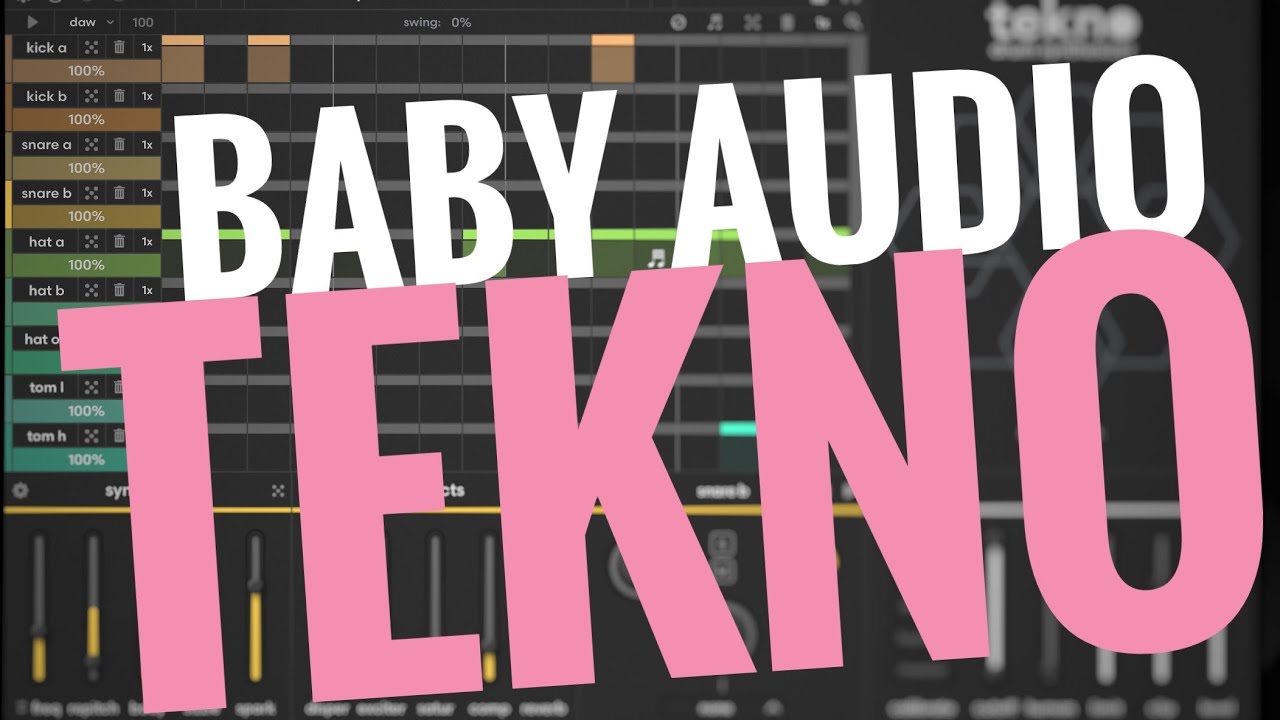
**Channel:** Gavinski's Tutorials
**URL:** https://www.youtube.com/watch?v=L2L4bSlwI-4&t=233s
**Date processed:** 2026-01-08
---
## Summary
This video reviews Baby Audio's Tekno drum synthesizer following its major 1.1 update, which adds a sequencer, choke groups, and other features. The plugin is now available on iOS (iPad and iPhone) in addition to desktop. Gavinski walks through both original and new features, highlighting the app's beautiful design and sound quality—noting that Jatin Chowdhuri from Chow DSP handled the circuit modeling.
The review emphasizes that while the UI appears simple, there's significant depth hidden behind cog icons, making it accessible for beginners while offering expert-level control. The new sequencer is praised as "a pleasure to use," featuring intelligent randomization that creates musically coherent patterns. Key new additions include choke groups for realistic drum behavior, individual lane length control for polyrhythms, per-step velocity adjustment, and comprehensive randomization options with undo/redo.
The main criticisms focus on iOS-specific issues: the drag-and-drop sample export feature from desktop is missing entirely (with no files app alternative), some touch controls are occasionally unresponsive, and there's a crash bug when enlarging the sequencer view with USB audio attached.
---
## Key Points
- **Developed by Jatin Chowdhuri** (Chow DSP) - explains the high-quality circuit modeling and synthesis
- **Hidden depth** - cog icons throughout reveal deeper synthesis and effects controls for each drum voice
- **Fixed architecture** - 16 voices total (kick A/B, snare, hats, etc.) but cannot have multiple instances of one type
- **Intelligent sequencer randomizer** - creates musically coherent patterns automatically
- **Lane length control** - tap to change individual lane lengths for polyrhythms
- **Per-step velocity** - drag vertically on steps to adjust velocity (shown as darkness)
- **Choke groups** - assign drums to groups so one chokes another (e.g., hi-hats)
- **Multi-out support** - can route individual drums to separate mixer channels
- **iOS limitations** - no drag-and-drop export (desktop only), some touch responsiveness issues
- **MIDI learn** - fully configurable note assignments with save/load for custom configurations
---
## Detailed Notes
### Design and Sound Quality [0:00-2:00]
- Beautiful design aesthetically and sonically
- Based on classic drum machines but not a slavish emulation
- Circuit modeling by Jatin Chowdhuri (Chow DSP)
- Can push sounds very far with deep synthesis settings
### Hidden Controls [2:00-3:30]
- Cog icons reveal additional controls throughout
- Each drum has main synthesis controls plus deeper parameters (scroll down for more)
- Effects vary by drum type:
- Hat: ring, exciter, tilt, saturation, reverb
- Snare: disperser, exciter, etc.
- Good for beginners (simple view) and experts (deep controls)
### Architecture Limitations [3:30-4:30]
- 16 voices fixed: kick A, kick B, snare, hats, etc.
- Cannot have 5 kick A's, for example
- Workaround: use multiple plugin instances
- Mixer with mute/solo for each voice
- Global reverb and humanization settings
### Sequencer Features [4:30-9:00]
- Visually pleasing and functional
- Expandable view (buggy with USB mic attached - crashes)
- Lanes 1-8 and 9-16 toggled by tapping below (not dragging)
- **Lane length**: tap icon to individually shorten lanes for polyrhythms
- **Ratcheting**: add via tap on the ratchet icon
- **Global controls**:
- Randomize entire sequence
- Clear sequence
- Double/half speed
- Transport follow (DAW, free, or off)
- **Per-lane controls**:
- Individual randomization
- Individual tempo doubling/halving
- Chance percentage
- **Per-step velocity**: drag vertically (darker = lower velocity)
- **Keyboard shortcut**: Option + tap fills steps (no touch gesture alternative)
### MIDI Configuration [9:45-11:00]
- View/edit MIDI note assignments for each drum
- MIDI learn: attach keyboard, select learn, play note
- Note: octave numbering varies between instruments (D1 vs D2)
- Can save custom configurations
### Multi-Out Routing [11:00-12:30]
- Demonstrated in AUM host
- Load additional instances via "multibus audio unit instances"
- Each instance receives specific drum outputs
- Main instance outputs reverb
- Essential feature for mixing drums separately
### Randomization Options [12:30-13:45]
- Global patch randomization
- Individual sound randomization (dice icon)
- Lock feature to protect sounds from global randomization
- Undo/redo for randomization (added post-1.1)
### iOS Limitations [14:00-15:30]
- **No drag-and-drop**: cannot export audio or MIDI samples
- Desktop version has this; iOS version dropped it entirely
- Should have files app export as alternative (doesn't exist)
- Keyboard shortcuts require hardware keyboard (no gesture alternatives)
### Additional Settings [15:20-16:30]
- Velocity sensitivity toggle
- Swing controls: 16th or 8th note, with amount dial
- **Choke groups**: assign drums to groups (1-4?)
- Example: Hat A and Hat B in group 1 = B chokes A
- Emulates real drum behavior
- Creative effects applications
### Final Thoughts [16:30-17:00]
- Overall: "pretty great drum synth"
- Wishes Baby Audio would make iOS versions identical to desktop
- Touch response issues plague other Baby Audio apps too (Transit 2 mentioned)
- Synthesis engines have lots of depth (not covered in this video)
---
## Connections
*Links to related vault notes will be added here*
---
## My Notes
*Space for your own thoughts, reactions, and connections after watching*
---
## Full Transcript
<details>
<summary>Click to expand transcript</summary>
[0:00] Hey everybody, welcome back to another episode
of Gavinski's tutorials. So today I'm going to
[0:05] briefly run through what I love about Tekno,
the Baby Audio drum synth, and what from my
[0:11] perspective could be improved. So this massive
1.1 update just came out adding this really nice
[0:19] sequencer and a lot of other features as well. And
this is now on iPad and iPhone 2. This is going to
[0:26] be a general review of the app which will cover,
you know, the earlier features as well as some of
[0:31] the new features. Also, one thing quickly first
everybody, if you're a fan of my work and you'd
[0:36] like to support me at no extra cost to you and
if you're buying desktop plugins, including this
[0:42] um that are available on Plugin Boutique, I've
got a link for Plugin Boutique affiliate link in
[0:47] the pinned comment and the video description
of this video. Thank you to guys using those
[0:52] links. I really appreciate it. Okay, so let's just
jump through. I've got a few presets here that I
[0:59] uh just did using the randomizer. So, these were
all just done, you know, with the randomizer and
[1:08] uh no other tweaking. And I found it is a really
really nice little sequence randomizer and it is
[1:15] designed to be intelligent and it creates nice
sounding sequences for sure. So, that's great.
[1:22] We come back to the sequencer later. So the first
thing I just want to say um you know overall I
[1:29] absolutely love the design of the app. So from
a looks perspective and a sound perspective it's
[1:35] beautiful. In terms of sound, Jatin Chowdhuri
from Chow DSP was the main developer behind
[1:42] this. So it doesn't surprise me that um you know
all the circuit modeling and everything has been
[1:48] done very well cuz that is his specialty. He's a
big brain guy when it comes to that sort of stuff.
[1:56] Um, and although this is based on classic
drum machines, by the way, it's not a slavish
[2:01] emulation or anything, and it probably allows you
to push things very far if you go in deep into the
[2:08] synthesis settings and stuff. Now, one thing worth
mentioning, although the UI looks very simple,
[2:15] there are a lot of controls hidden away. Anywhere
you've got a little cog, that'll bring up other
[2:20] controls. So, you know, these are the main uh what
are we on here? The hat. Let's just press on kick,
[2:28] for example. So, here these are the main synthesis
controls for the kick. If I press this, then we
[2:35] toggle on these deeper controls. Tap down here to
scroll down further there. Same with the effects,
[2:45] right? So these are the main effects for kick A,
you know, these effects and these sliders here.
[2:51] Everything will change depending on what engine
you're on, right? Like now that's the the hat,
[2:57] you know, ring, exciter, tilt, saturation, reverb,
and so on. Snare has different stuff. Disperser,
[3:04] exciter, etc., right? So although it looks very
simple, there's a lot of stuff hidden away behind
[3:10] the icons. So you can uh you know go very deep
with this or you can keep things simple. So it's
[3:18] good for beginners, it's good for experts. Um
one thing though by the way, it's a pity that
[3:27] uh you know the architecture here is fixed. Uh
you've got these 16 different voices, but you know
[3:36] you've got one kick A, you've got one kick B. um
you can't have, for example, five different kick
[3:44] A's, which you know, you might want, but maybe
there's a reason why that's been limited. Also,
[3:49] of course, you could, you know, that's the point
of plugins. You could work with a few different
[3:54] instances of this, right? Um, if we go down
here, this is where we toggle on the sequencer,
[4:01] and we'll come back to it later. Here is the mixer
with um mutant solo and stuff for each one. Here's
[4:09] some reverb settings, some humanization settings.
Inside the calibration controls for each synth,
[4:18] you'll also be able to dial in whether and how
much it will respond to the global humanization.
[4:30] Okay,
[4:34] so back to the sequencer.
[4:40] So, the sequencer is really a pleasure to use and
look at, I would say. And, um, theoretically, uh,
[4:48] theoretically you can enlarge it on iOS, but I
just had several crashes when I pressed this.
[4:57] I think it's something to do with having a USB
mic attached because before I was trying to make
[5:02] this walkthrough, I didn't have any crashes
with that. But there's definitely a bug. So,
[5:07] I'm not going to press this now in case it crashes
this session again. And I have to start everything
[5:12] from scratch like I had to already several
times. But there is a bug there. But yeah,
[5:18] normally you should be able to tap this and the
sequence view will open bigger. Um, when you when
[5:26] you've got it loaded on a big iPad like here,
I've got 13 inch. And with this at full size,
[5:32] uh, you probably wouldn't really need to zoom
in on that, but it would definitely be handy on
[5:37] a phone or on a smaller device or if you've got,
you know, the windows sized, uh, smaller, right?
[5:48] Okay. So, um, one thing that's easy to
miss, by the way, about the sequencer,
[5:53] again, you know, make sure you tap here, and
this you can't drag this, which is the normal
[5:59] way these things work. So, it can be confusing,
but basically just tap in the space down here to
[6:05] toggle between the lanes 1 to 8 and 9 to 16.
Okay, so there are a few cool things here.
[6:19] Oh, let's just leave that in. That sounds good,
even though it was a mistake. So, um, you know,
[6:24] if I press this, I can, uh, suddenly tap here,
and now I've just changed the length of this lane.
[6:34] And that's nice. That's a nice little performance
control. And just tap it again to get rid of it.
[6:43] So, you know, you could get uh polyrhythms
and stuff going. tap this little thing.
[6:49] And I don't know why I'm having to tap
two times every time I try and use my
[6:54] um trackpad here. Bluetooth attached to
the iPad. Don't think I need to double tap
[7:02] um when I'm on directly on the screen. Yeah, I
don't. But with the Bluetooth keyboard, I'm having
[7:09] to double tap that. That's strange. So yeah,
this is just adding in a little ratchet, right?
[7:17] Now here I can randomize the entire
sequence. Here I can just trash the
[7:24] entire sequence. Here I can double
the speed of the entire sequence or
[7:29] have the speed of the entire sequence. Some
settings here uh you know do you want it to
[7:37] follow your DAW's transport or be free or
you can just turn that off alto together.
[7:47] Um, and then you know here we have like we've got
a global randomizer but I can also randomize for
[7:54] a given lane. Now one thing one criticism I would
have on iOS uh when you're using touch sometimes
[8:05] these randomizers are a little bit fiddly. Like
sometimes when I tap them with my finger they
[8:10] respond very well and other times I have to tap
a few times. That is a bit annoying and that's a
[8:15] common theme with Baby Audio. I do hope they sort
that out. It's not a huge big thing. I've mostly
[8:21] found it, you know, operating pretty well, but
it's still definitely not perfect. And so here,
[8:26] look, we can, you know, have or double the timing
for individual lanes. So, that's really nice.
[8:33] Another thing, um, you know, here you can
just quickly dial in the chance for each
[8:40] lane. And also on individual steps, if you drag
vertically, uh, you can adjust the velocity,
[8:50] which is really nice. And you can see that
getting darker as I bring the velocity down.
[9:00] Um, there's a little shortcut by the
way as well. If you press option on
[9:05] your keyboard and you tap a step on
the sequencer, let me just try that.
[9:13] Oh, great. Okay, now that's not working.
That's strange. That worked for me earlier.
[9:22] Weird. Maybe it only works in standalone. Oh,
there we go. Okay. Strange. Let me try that
[9:27] again. Option and tap. And it's filled all those
steps. Problem is though, um, if you don't have a
[9:35] keyboard attached, you can't do that, you know.
And, um, it is a pity because really, uh, there
[9:41] should be gestures that can do anything that
can be done with a keyboard shortcut, you know.
[9:49] Now just closing the sequencer for a minute.
Another thing worth mentioning. If I tap on this,
[9:57] I can see what MIDI note will trigger each of
the drums, right? And uh you can tap this and
[10:10] you can use MIDI learn. So just, you know, attach
a keyboard, make sure you're sending it into this,
[10:18] and then play a note. So we pressed D here
and it's put in D there. Now I mean this says
[10:24] D2 that says D1. That's just because uh you
know there are differences between how different
[10:30] instruments approach that. So be aware of that.
Also if uh you're trying to trigger something
[10:37] with a keyboard and it's not working, try an
octave up or down. This is just a weird uh quirk
[10:44] of MIDI. It's not a problem with techno or
anything. And look, you can also save, you know,
[10:52] if you set up a certain configuration here, you
can save that and give it a name and stuff. So
[10:58] that's great. Now, another thing, uh, let me just
close this. So, it also has, uh, multi out. So,
[11:04] if I load something, I've got a little one that
I made here. Send to three multi out instances.
[11:13] Okay. So this is a very very very basic example
of multi out. So if I go in here, you know how
[11:21] your host deals with this will be different in
different hosts. This is how it's done in AUM.
[11:26] So I tap here in another instrument slot. Go
to multibus audio unit instances and choose
[11:32] techno A2. And then the easiest way to to proceed
from here is just to duplicate this or I can just
[11:43] repeat you know the steps that I did before but
this way is easier. And so now if you see this
[11:51] instance this is sending the kick or this is
getting the kick. Okay. And here this is getting
[12:00] the snare, you know, ve very very simple example.
And here this one's getting a a high hat, right?
[12:09] And then the uh reverb is coming out on this
main instance. That's why you're seeing that
[12:15] light up. So it has multi out. That's great. It's
super useful. Every drum machine should have multi
[12:21] out. So I'm really glad that it has that, right?
Yeah. Now, let me just open it up again.
[12:37] Okay. So, tons of randomization
options, right? We can randomize,
[12:44] you know, all the patches. Um, we
can randomize individual sounds.
[12:55] You know, if I press this, then I get a a
little dice here, and I can use that just
[12:59] to randomize the kick, right? And you
also have a lock here so that you can
[13:06] lock things that you don't want to be
randomized by the global randomizer.
[13:18] Great. I think the original release version,
you know, the 1.1 version didn't have that.
[13:26] And it's got undo and redo, which is great.
And I think it didn't have that maybe before.
[13:33] So everything with a randomizer should
have undo and redo. So that's fabulous.
[13:52] So, let me see. One important thing to mention,
very important. The iOS version does not allow for
[14:00] drag and drop of audio or MIDI. If you're looking
at the desktop version, it has more options here
[14:06] in settings, including the ability to drag and
drop audio and MIDI. That is a real pity for some
[14:14] people I think. Um cuz you know for drag for that
audio feature like that's what you use to export
[14:22] samples of each of these drums each of the drum
engines. And uh you can export samples either with
[14:28] or without effects. But it seems like on iOS um
because they weren't able to implement drag and
[14:35] drop they've just you know dropped that uh feature
entirely which is crazy because there should be a
[14:44] way to just uh even if you can't drag and drop
and I know that's difficult if this is a juice
[14:50] port it's difficult to implement that although it
is possible but um what what Baby Audio should do
[14:55] is set up a way that you can just export uh
the samples to the files app, you know. So,
[15:03] that is a pity. So, that's missing. That's the
only really important thing that's missing. Um,
[15:10] there are a few keyboard shorts, as I mentioned,
for the desktop version that will work on iOS
[15:14] if you have a keyboard attached, but you know,
really there should be gesture based alternatives.
[15:22] Um, also in settings here, just to mention
quickly, you know, you can set whether it will
[15:28] be velocity sensitive or not. You know, you might
want that, you might not when you're sending in
[15:34] um external MIDI from an external keyboard, say,
or another uh app or a touchcreen keyboard or
[15:41] whatever. Uh there are also some swing controls
16th or eighth note choice here and dial in the
[15:51] amount. You can also set up choke groups. So
let's say for example if I put um hat A and
[16:00] hat P hat B. If I put them both in group one then
when uh hat B plays if hat A is already playing
[16:09] then it will choke it. That's super useful for
emulating the way that real drums work and just
[16:15] for doing creative effects as well. So overall, I
think it's a pretty great drum synth. I just hope
[16:23] that Baby Audio start making their iOS versions
identical to the desktop versions. And for the hit
[16:30] and miss response to touches that plagues their
iOS offerings, uh, like Transit 2, also pretty,
[16:39] um, hit and miss on the tapping of some little
UI elements. So, I really hope that gets sorted,
[16:46] but apart from that, it's great. Beautiful sounds.
So, in this video, I mean, I'm not diving into the
[16:51] different synth engines. There's a hell of a lot
going on there. I don't know, maybe something for
[17:01] another video, but I'm not sure. There's probably
already videos on that anyway elsewhere. So,
[17:01] thanks everyone. I hope this was useful for you
and see you in the next video. Take it easy.
</details>